Hi all,
I have a Samsung A53 with Android 16. I have a pc with Windows 10 Pro.
When I connect a cable between the pc and my phone, I could see the
phone on my pc and open it. I could see all the folders and pictures.
Easy to download them.
But my phone got an update. And now it has changed. When I connect the cable, I get a message on my phone: Tap the USB notification to use USB
for transferring files.
But that's all. Nothing to tap on. And though I can see the phone om ny
pc, I can't open it. Can't download pictures.
I also have a SSH server on my phone. I could contact that with a client
on my pc, and had access to my phone. Now it also doesn't work anymore.
What can I do to access my phone?
Many thanks in advance for your answers.
With best regards,
Fokke Nauta
On 2025-12-05 08:33, Fokke Nauta wrote:
Hi all,
I have a Samsung A53 with Android 16. I have a pc with Windows 10 Pro.
When I connect a cable between the pc and my phone, I could see the
phone on my pc and open it. I could see all the folders and pictures.
Easy to download them.
But my phone got an update. And now it has changed. When I connect the
cable, I get a message on my phone: Tap the USB notification to use
USB for transferring files.
But that's all. Nothing to tap on. And though I can see the phone om
ny pc, I can't open it. Can't download pictures.
I also have a SSH server on my phone. I could contact that with a
client on my pc, and had access to my phone. Now it also doesn't work
anymore.
What can I do to access my phone?
Many thanks in advance for your answers.
With best regards,
Fokke Nauta
Try rebooting the phone.
On 05/12/2025 11:14, Carlos E.R. wrote:
On 2025-12-05 08:33, Fokke Nauta wrote:
Hi all,
I have a Samsung A53 with Android 16. I have a pc with Windows 10
Pro. When I connect a cable between the pc and my phone, I could see
the phone on my pc and open it. I could see all the folders and
pictures. Easy to download them.
But my phone got an update. And now it has changed. When I connect
the cable, I get a message on my phone: Tap the USB notification to
use USB for transferring files.
But that's all. Nothing to tap on. And though I can see the phone om
ny pc, I can't open it. Can't download pictures.
I also have a SSH server on my phone. I could contact that with a
client on my pc, and had access to my phone. Now it also doesn't work
anymore.
What can I do to access my phone?
Many thanks in advance for your answers.
With best regards,
Fokke Nauta
Try rebooting the phone.
I did.
Didn't make a difference.
On 2025-12-05 11:30, Fokke Nauta wrote:
On 05/12/2025 11:14, Carlos E.R. wrote:
On 2025-12-05 08:33, Fokke Nauta wrote:
Hi all,
I have a Samsung A53 with Android 16. I have a pc with Windows 10
Pro. When I connect a cable between the pc and my phone, I could see
the phone on my pc and open it. I could see all the folders and
pictures. Easy to download them.
But my phone got an update. And now it has changed. When I connect
the cable, I get a message on my phone: Tap the USB notification to
use USB for transferring files.
But that's all. Nothing to tap on. And though I can see the phone om
ny pc, I can't open it. Can't download pictures.
I also have a SSH server on my phone. I could contact that with a
client on my pc, and had access to my phone. Now it also doesn't
work anymore.
What can I do to access my phone?
Many thanks in advance for your answers.
With best regards,
Fokke Nauta
Try rebooting the phone.
I did.
Didn't make a difference.
Different cable?
Different computer?
Hi all,
I have a Samsung A53 with Android 16. I have a pc with Windows 10 Pro.
When I connect a cable between the pc and my phone, I could see the
phone on my pc and open it. I could see all the folders and pictures.
Easy to download them.
But my phone got an update. And now it has changed. When I connect the cable, I get a message on my phone: Tap the USB notification to use USB
for transferring files.
But that's all. Nothing to tap on. And though I can see the phone om ny
But that's all. Nothing to tap on. And though I can see the phone om ny
pc, I can't open it. Can't download pictures.
I also have a SSH server on my phone. I could contact that with a client
on my pc, and had access to my phone. Now it also doesn't work anymore.
What can I do to access my phone?--- Synchronet 3.21a-Linux NewsLink 1.2
Many thanks in advance for your answers.
Tried that, but the same result.
Fokke Nauta wrote:
Tried that, but the same result.
I had perhaps a similar problem in that the phone wasn't recognized on another computer (a borrowed laptop) where it was the cable, so I wrote up
a thread on how to buy a cable that will work for both data and charging.
Newsgroups: alt.comp.os.windows-10,comp.mobile.android
Subject: Choosing a USB-A to USB-C Data Transfer Cable on Amazon
Date: Wed, 26 Nov 2025 05:12:15 -0000 (UTC)
Message-ID: <10g627f$8kuc$1@paganini.bofh.team>
At first I thought the cable was fine, so I downloaded the Samsung drivers onto Windows (since the borrowed laptop hadn't been booted in a while).
But replacing the Samsung drivers didn't solve the problem.
The new cable solved that problem. <https://www.amazon.com/s?k=USB-IF+certified+usb-a+to+usb-c+3.0+data+transfer+cable+6ft>
Fokke Nauta <fnauta@solfon.nl> wrote:
Hi all,
I have a Samsung A53 with Android 16. I have a pc with Windows 10 Pro.
When I connect a cable between the pc and my phone, I could see the
phone on my pc and open it. I could see all the folders and pictures.
Easy to download them.
But my phone got an update. And now it has changed. When I connect the
cable, I get a message on my phone: Tap the USB notification to use USB
for transferring files.
But that's all. Nothing to tap on. And though I can see the phone om ny
The "Tap the USB notification to use USB for transferring files"
message" is on the main screen you're viewing. But note that it mentions
"the USB notification" and notifications are in the notifications area 'behind' the screen you're viewing. So drag down from the top and the notification area will open and you'll see the 'USB...' notification
which you can tap on to select the desired USB mode, in your case 'Transferring files / Android Auto'.
OTOH, things have always been this way, so I wouldn't know how you
would not remmember that.
But that's all. Nothing to tap on. And though I can see the phone om ny
pc, I can't open it. Can't download pictures.
If you can see the phone on your (Windows?) PC, the USB connection is probably set correctly, at least for pictures ('Transferring images' setting). But for security reasons, your phone must be unlocked to
transfer files. So if your phone's screen is locked, unlock it and acknowledge any permission prompt you might get.
I also have a SSH server on my phone. I could contact that with a client
on my pc, and had access to my phone. Now it also doesn't work anymore.
Can't help with that one.
What can I do to access my phone?
Many thanks in advance for your answers.
Hi all,
I have a Samsung A53 with Android 16. I have a pc with Windows 10 Pro.
When I connect a cable between the pc and my phone, I could see the
phone on my pc and open it. I could see all the folders and pictures.
Easy to download them.
But my phone got an update. And now it has changed. When I connect the >cable, I get a message on my phone: Tap the USB notification to use USB
for transferring files.
But that's all. Nothing to tap on. And though I can see the phone om ny
pc, I can't open it. Can't download pictures.
I also have a SSH server on my phone. I could contact that with a client
on my pc, and had access to my phone. Now it also doesn't work anymore.
What can I do to access my phone?
Many thanks in advance for your answers.
With best regards,
Fokke Nauta
I'mI fail to see how this could have plugged any security hole! Before and
assuming that a security hole was plugged, and if that is correct, I like
it.
On 2025-12-05 16:44, croy wrote:
I'mI fail to see how this could have plugged any security hole! Before and now, in both cases you have to have possession of the phone and the
assuming that a security hole was plugged, and if that is correct, I like it.
matching fingerprint/PIN/ugly mug/whatever to log into it, so the new rigmarole is not discernibly more secure than the old, it's just a
ritual bloody nuisance.
On 05/12/2025 14:13, Frank Slootweg wrote:
The "Tap the USB notification to use USB for transferring files" message" is on the main screen you're viewing. But note that it mentions "the USB notification" and notifications are in the notifications area 'behind' the screen you're viewing. So drag down from the top and the notification area will open and you'll see the 'USB...' notification
which you can tap on to select the desired USB mode, in your case 'Transferring files / Android Auto'.
I did and it worked. I noticed that I'll have to do this every time I connect my pc to this phone.
Thanks.
Hi all,
I have a Samsung A53 with Android 16. I have a pc with Windows 10 Pro.
When I connect a cable between the pc and my phone, I could see the
phone on my pc and open it. I could see all the folders and pictures.
Easy to download them.
But my phone got an update. And now it has changed. When I connect the cable, I get a message on my phone: Tap the USB notification to use USB
for transferring files.
But that's all. Nothing to tap on. And though I can see the phone om ny
pc, I can't open it. Can't download pictures.
I also have a SSH server on my phone. I could contact that with a client
on my pc, and had access to my phone. Now it also doesn't work anymore.
What can I do to access my phone?
Many thanks in advance for your answers.
With best regards,
Fokke Nauta
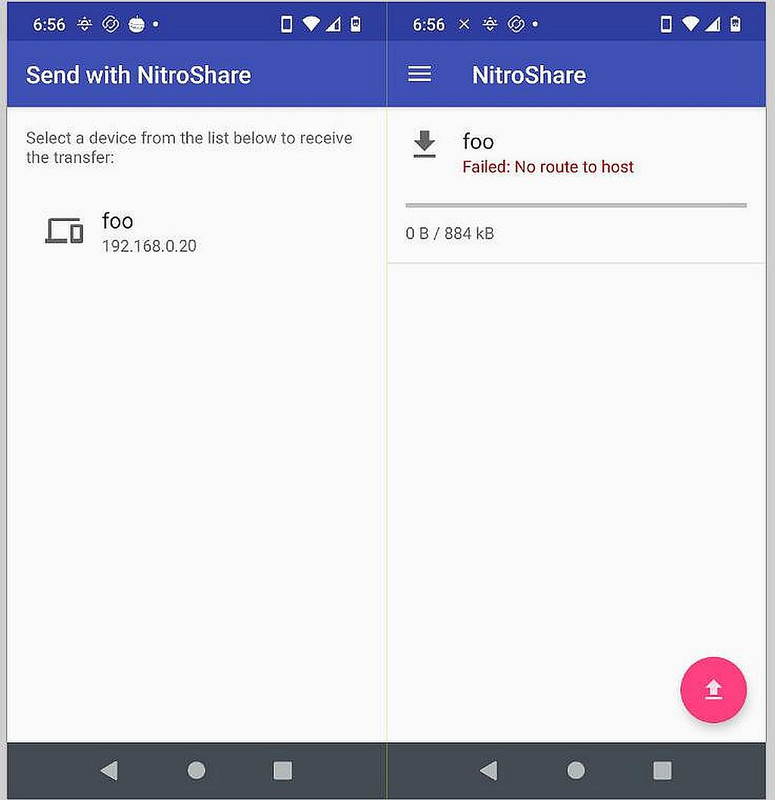
I don't have a solution, but the LocalSend app may be a viable
workaround for you, as it is or me. Navigate to the file you want to transfer to your PC, then long-press and select Share. If you have
LocalSend running, it will be one of the share options. Of course you
need to have the Windows version running at the same time too.
https://localsend.org/
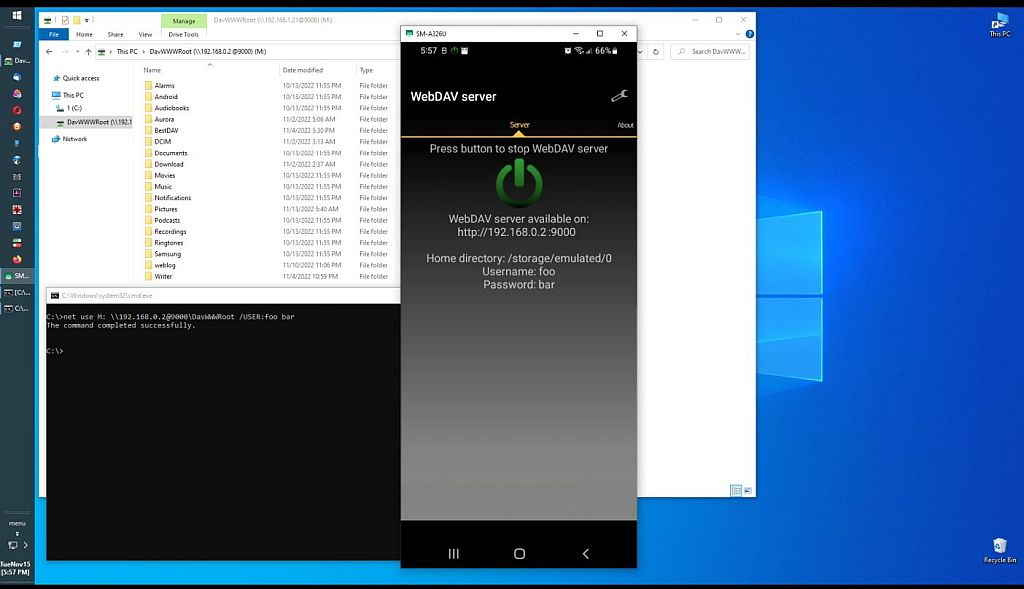
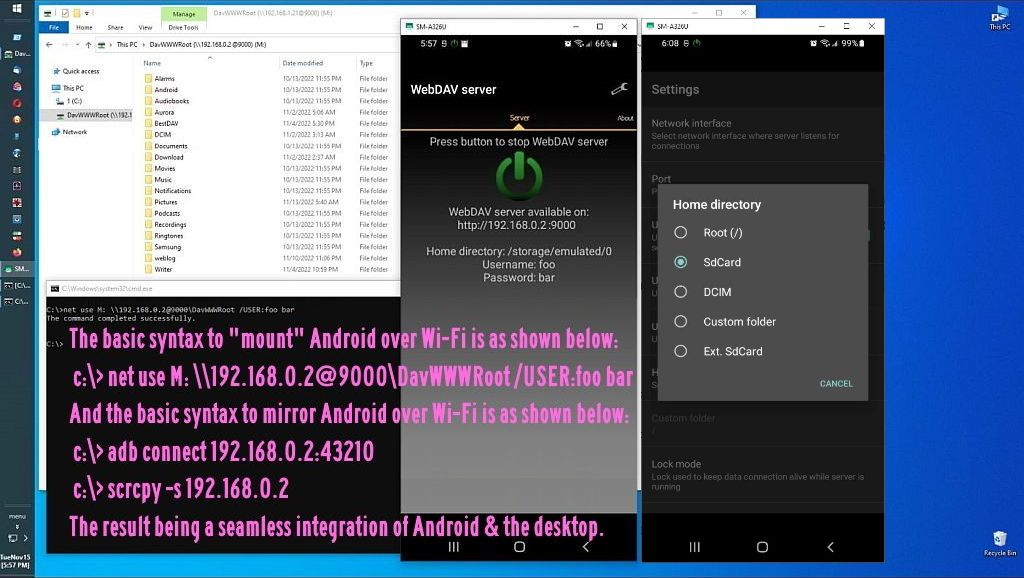
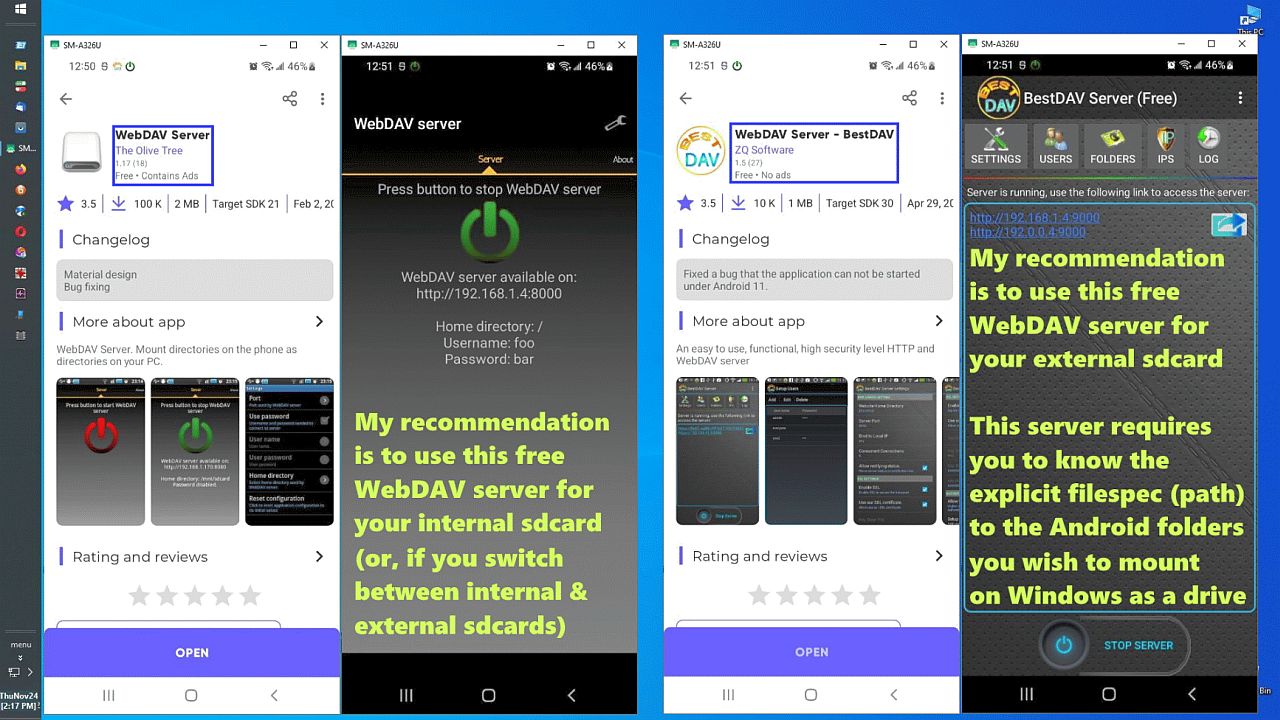
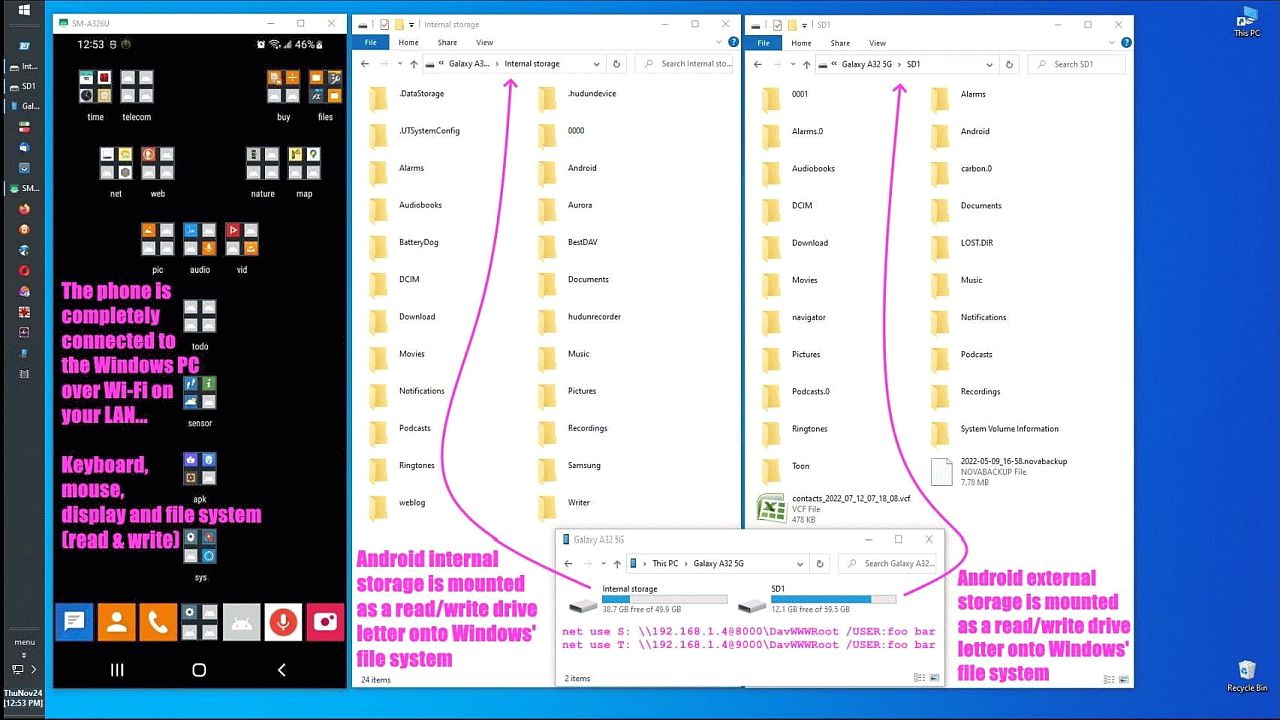
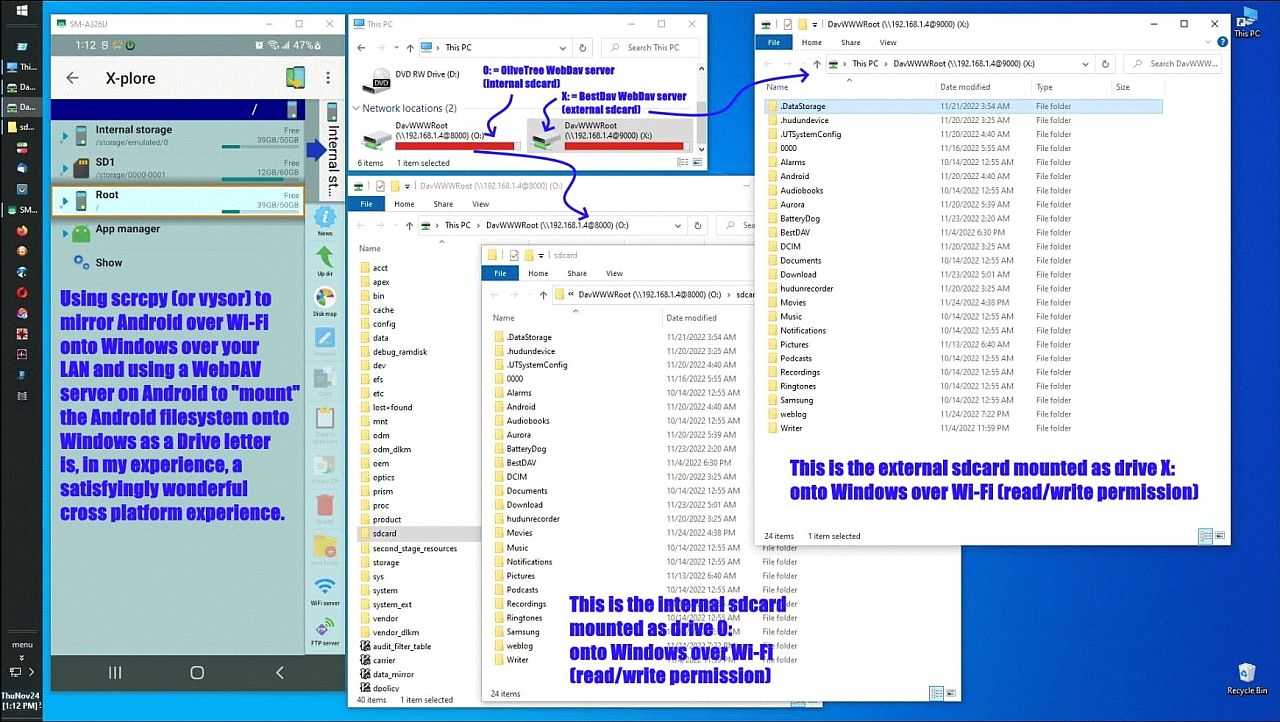
net use P: \\192.168.0.2@8000\DavWWWRoot /USER:foo bar
On Fri, 5 Dec 2025 15:35:00 +0100, Fokke Nauta wrote:
On 05/12/2025 14:13, Frank Slootweg wrote:
The "Tap the USB notification to use USB for transferring files"
message" is on the main screen you're viewing. But note that it mentions >>> "the USB notification" and notifications are in the notifications area
'behind' the screen you're viewing. So drag down from the top and the
notification area will open and you'll see the 'USB...' notification
which you can tap on to select the desired USB mode, in your case
'Transferring files / Android Auto'.
I did and it worked. I noticed that I'll have to do this every time I
connect my pc to this phone.
Thanks.
I'm pretty sure you can go in Ontwikkelaarsopties and set this as the
default action when you connect with USB.
On Fri, 5 Dec 2025 08:33:17 +0100, Fokke Nauta <fnauta@solfon.nl> wrote:
Hi all,
I have a Samsung A53 with Android 16. I have a pc with Windows 10 Pro.
When I connect a cable between the pc and my phone, I could see the
phone on my pc and open it. I could see all the folders and pictures.
Easy to download them.
But my phone got an update. And now it has changed. When I connect the
cable, I get a message on my phone: Tap the USB notification to use USB
for transferring files.
But that's all. Nothing to tap on. And though I can see the phone om ny
pc, I can't open it. Can't download pictures.
I also have a SSH server on my phone. I could contact that with a client
on my pc, and had access to my phone. Now it also doesn't work anymore.
What can I do to access my phone?
Many thanks in advance for your answers.
With best regards,
Fokke Nauta
I noticed the same on my Samsung Android 16 phone. It used to be that all
I had to do was attach the cable and log into the phone, and I could then transfer files. But a recent update changed that, and now I have to do
what Mr. Slootweg suggested each time I want to transfer files. I'm
assuming that a security hole was plugged, and if that is correct, I like
it. It had me fumbling for a bit, but now I just do the required steps and move on.
On Fri, 5 Dec 2025 08:33:17 +0100, Fokke Nauta wrote:
Hi all,
I have a Samsung A53 with Android 16. I have a pc with Windows 10 Pro.
When I connect a cable between the pc and my phone, I could see the
phone on my pc and open it. I could see all the folders and pictures.
Easy to download them.
But my phone got an update. And now it has changed. When I connect the
cable, I get a message on my phone: Tap the USB notification to use USB
for transferring files.
But that's all. Nothing to tap on. And though I can see the phone om ny
pc, I can't open it. Can't download pictures.
I also have a SSH server on my phone. I could contact that with a client
on my pc, and had access to my phone. Now it also doesn't work anymore.
What can I do to access my phone?
Many thanks in advance for your answers.
With best regards,
Fokke Nauta
I don't have a solution, but the LocalSend app may be a viable
workaround for you, as it is or me. Navigate to the file you want to
transfer to your PC, then long-press and select Share. If you have
LocalSend running, it will be one of the share options. Of course you
need to have the Windows version running at the same time too.
https://localsend.org/
On 05/12/2025 19:15, s|b wrote:
I'm pretty sure you can go in Ontwikkelaarsopties and set this as the default action when you connect with USB.
I haven't found Ontwikkelaarsopties.
For someone whose native language is the same as s|b's, it only takes some imagination to understand what he means: Developer options, of course.
I haven't found Ontwikkelaarsopties.
I noticed the same on my Samsung Android 16 phone. It used to be that allThe "charge-only/file-transfer/android-auto/usb-tether/midi/ptp/webcam/reverse-charge/do-nothing"
I had to do was attach the cable and log into the phone, and I could then transfer files. But a recent update changed that, and now I have to do
what Mr. Slootweg suggested each time I want to transfer files.
On Sat, 6 Dec 2025 10:30:35 +0100, Fokke Nauta wrote:
I haven't found Ontwikkelaarsopties.
You can open Instellingen and then type something to search for. Have
you done this or did you go through all the settings yourself?
It should be under 'Instellingen > Systeem'.
On Sat, 6 Dec 2025 11:58:11 +0100, Siard wrote:
For someone whose native language is the same as s|b's, it only takes some >> imagination to understand what he means: Developer options, of course.
Check Fokke's From header; his mail is *.nl. So I think it's safe to
assume his native tongue is Dutch (like mine). The fact that he can't
find it is probably caused by the fact the Samsung thinks it has to
reinvent apps and settings.
Under Instellingen there is no Systeem or Ontwikkelaarsoptie.
On Sat, 6 Dec 2025 11:58:11 +0100, Siard wrote:
For someone whose native language is the same as s|b's, it only takes some imagination to understand what he means: Developer options, of course.
Check Fokke's From header; his mail is *.nl. So I think it's safe to
assume his native tongue is Dutch (like mine). The fact that he can't
find it is probably caused by the fact the Samsung thinks it has to
reinvent apps and settings.
Java Jive <java@evij.com.invalid> wrote:
On 2025-12-05 16:44, croy wrote:
I'mI fail to see how this could have plugged any security hole! Before and now, in both cases you have to have possession of the phone and the matching fingerprint/PIN/ugly mug/whatever to log into it, so the new rigmarole is not discernibly more secure than the old, it's just a
assuming that a security hole was plugged, and if that is correct, I like it.
ritual bloody nuisance.
Exactly! If someone has your phone in their hands then all files are accessible, the only possible protection is encryption.
Chris Green <cl@isbd.net> wrote:
Java Jive <java@evij.com.invalid> wrote:
On 2025-12-05 16:44, croy wrote:
I'mI fail to see how this could have plugged any security hole! Before and now, in both cases you have to have possession of the phone and the matching fingerprint/PIN/ugly mug/whatever to log into it, so the new rigmarole is not discernibly more secure than the old, it's just a ritual bloody nuisance.
assuming that a security hole was plugged, and if that is correct, I like
it.
Exactly! If someone has your phone in their hands then all files are accessible, the only possible protection is encryption.
If the phone is (screen) locked, you can't do anything, that's the
whole point of locking a phone.
If it's in my hands I can simply take it apart and access the memory.If the eMMC/UFS chip has internal encryption?
It's only the same as accessing a disk drive on an 'ordinary' computer.
Chris Green wrote:
If it's in my hands I can simply take it apart and access the memory.If the eMMC/UFS chip has internal encryption?
It's only the same as accessing a disk drive on an 'ordinary' computer.
Andy Burns <usenet@andyburns.uk> wrote:
Chris Green wrote:Is that common?
If it's in my hands I can simply take it apart and access the memory.If the eMMC/UFS chip has internal encryption?
It's only the same as accessing a disk drive on an 'ordinary' computer.
If so then you're right, although files stored on an
SD card probably won't be.
s|b <me@privacy.invalid> wrote:
On Sat, 6 Dec 2025 11:58:11 +0100, Siard wrote:
For someone whose native language is the same as s|b's, it only takes some >>> imagination to understand what he means: Developer options, of course.
Check Fokke's From header; his mail is *.nl. So I think it's safe to
assume his native tongue is Dutch (like mine). The fact that he can't
find it is probably caused by the fact the Samsung thinks it has to
reinvent apps and settings.
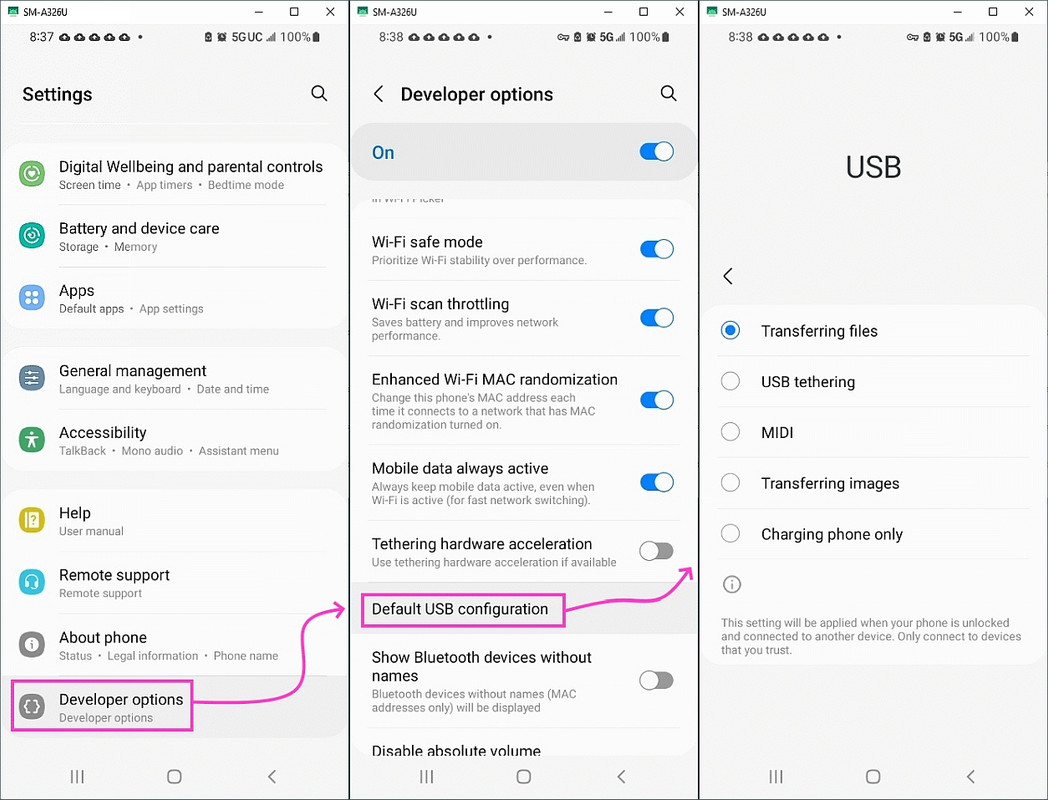
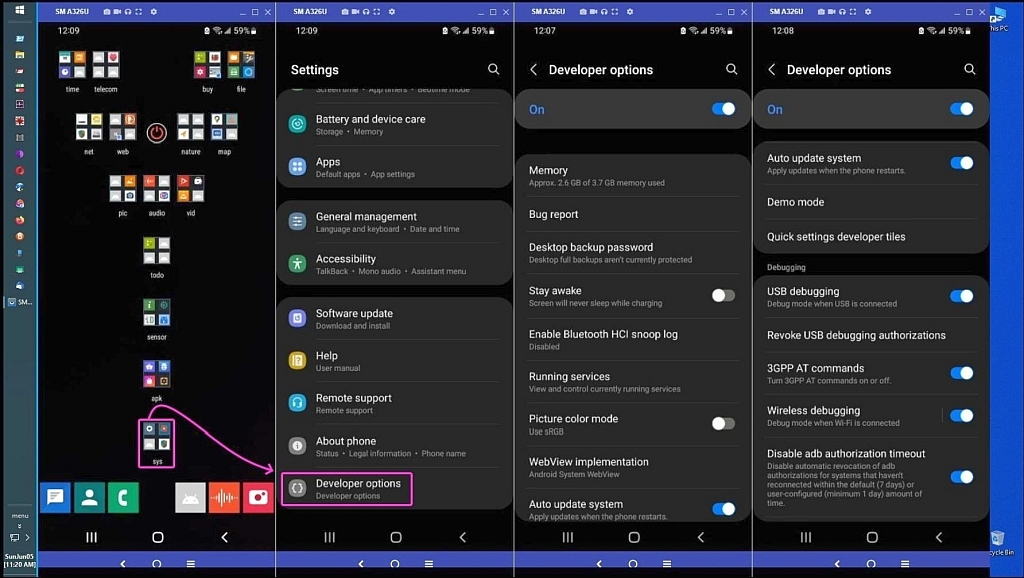
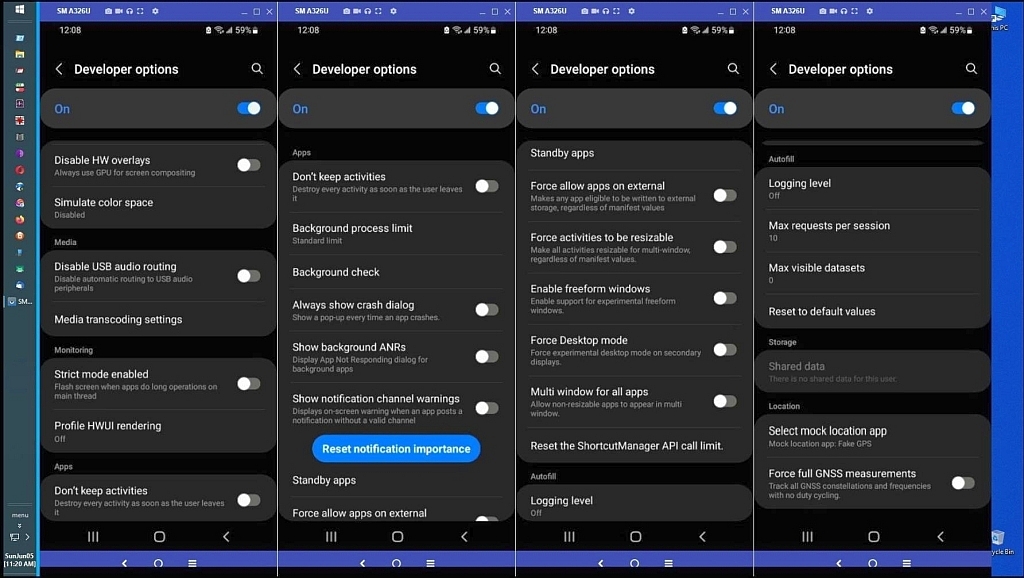
In order to 'find' the 'Developer options', they have to be *enabled* first:
For Fokke (and other Samsung users):
Settings -> About phone -> Software information -> tap the 'Build
number' seven times -> enter your PIN, etc. -> Presto! The 'Developer options' will now be at the bottom of your main Settings menu.
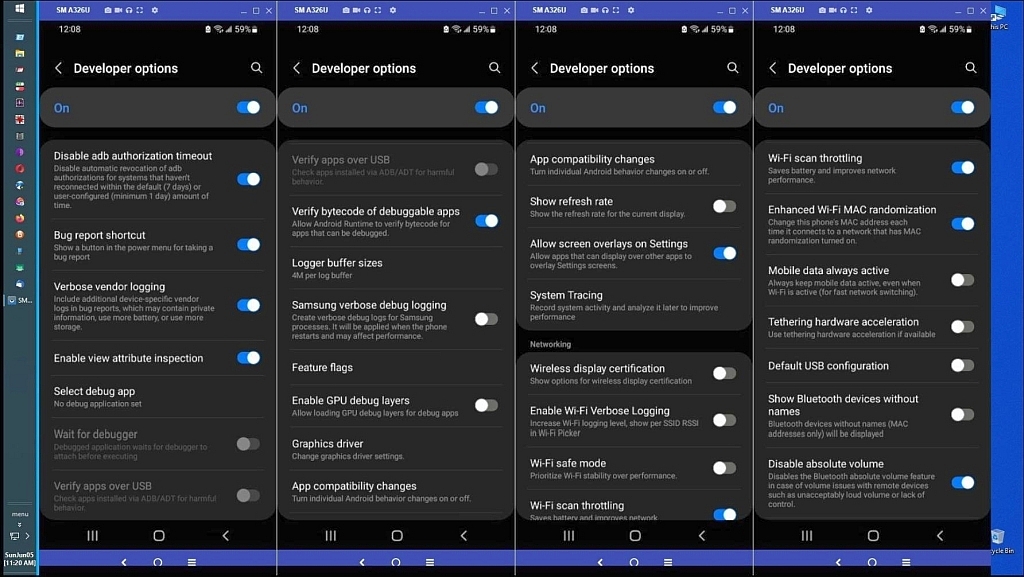
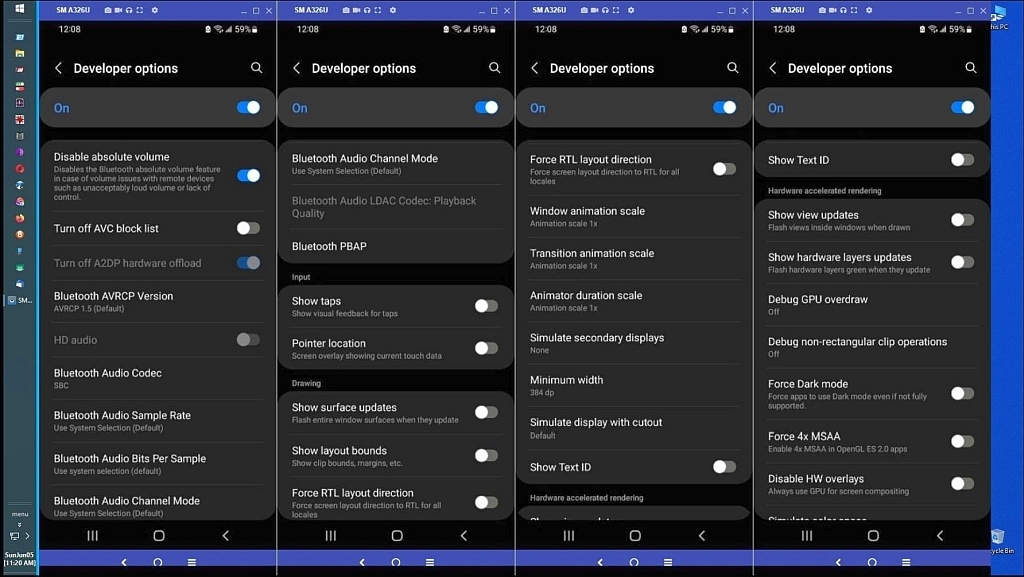
Now you'll find 'Default USB configuration' in the Developer options
menu. Just search (use the magnifying glass icon at the right-top) for
the setting, because it's a very long list to browse through.
And, as 's|b' mentioned, you can set the 'Default USB configuration'
to 'Transferring files / Android Auto'.
"Elementary, dear Watson!" :-)
On Sat, 6 Dec 2025 15:26:51 +0100, Fokke Nauta wrote:
Under Instellingen there is no Systeem or Ontwikkelaarsoptie.
<https://www.samsung.com/uk/support/mobile-devices/how-do-i-turn-on-the-developer-options-menu-on-my-samsung-galaxy-device/>
Frank Slootweg <this@ddress.is.invalid> wrote:
Chris Green <cl@isbd.net> wrote:
Java Jive <java@evij.com.invalid> wrote:
On 2025-12-05 16:44, croy wrote:
I'mI fail to see how this could have plugged any security hole!
assuming that a security hole was plugged, and if that is
correct, I like it.
Before and now, in both cases you have to have possession of the
phone and the matching fingerprint/PIN/ugly mug/whatever to log
into it, so the new rigmarole is not discernibly more secure
than the old, it's just a ritual bloody nuisance.
Exactly! If someone has your phone in their hands then all files are accessible, the only possible protection is encryption.
If the phone is (screen) locked, you can't do anything, that's the
whole point of locking a phone.
If it's in my hands I can simply take it apart and access the memory.
It's only the same as accessing a disk drive on an 'ordinary' computer.
Andy Burns <usenet@andyburns.uk> wrote:
Chris Green wrote:
If it's in my hands I can simply take it apart and access the memory. It's only the same as accessing a disk drive on an 'ordinary' computer.If the eMMC/UFS chip has internal encryption?
Is that common? If so then you're right, although files stored on an
SD card probably won't be.
And, as 's|b' mentioned, you can set the 'Default USB configuration'
to 'Transferring files / Android Auto'.
Hi Frank,
I did it and it worked! Fantastic! Haven't got a clue as to how you know this, but I learned this again.
Thanks very much.
On 06/12/2025 16:17, s|b wrote:
<https://www.samsung.com/uk/support/mobile-devices/how-do-i-turn-on-the-developer-options-menu-on-my-samsung-galaxy-device/>
Frank Slootweg already adviced me to do this.
And it worked!
On Sat, 6 Dec 2025 20:43:30 +0100, Fokke Nauta wrote:
On 06/12/2025 16:17, s|b wrote:
<https://www.samsung.com/uk/support/mobile-devices/how-do-i-turn-on-the-developer-options-menu-on-my-samsung-galaxy-device/>
Frank Slootweg already adviced me to do this.
And it worked!
Yeah, after I posted this link he finished the job. Glad it's working
for you.
In order to 'find' the 'Developer options', they have to be *enabled* first:
And, as 's|b' mentioned, you can set the 'Default USB configuration'Now done also ... Somehow I missed 's|b's explanation, so thanks to both
to 'Transferring files / Android Auto'.
I fail to see how this could have plugged any security hole!
I either missed your link or your post didn't 'register' in my brain.
As I mentioned to Fokke, I just did a Google search on 'samsung
developer options" and the Google 'AI Overview' gave the answer and was
much shorter (only 4 lines) than the Samsung article.
So it was a combined effort, you pointed to the Developer options and
the likelyhood of a USB setting in them and I finished the job with the specifics of the latter (and a duplication of the former),
Good on us! :-)
On 06/12/2025 17:47, Frank Slootweg wrote:
s|b <me@privacy.invalid> wrote:
On Sat, 6 Dec 2025 11:58:11 +0100, Siard wrote:
For someone whose native language is the same as s|b's, it only
takes some
imagination to understand what he means: Developer options, of course.
Check Fokke's From header; his mail is *.nl. So I think it's safe to
assume his native tongue is Dutch (like mine). The fact that he can't
find it is probably caused by the fact the Samsung thinks it has to
reinvent apps and settings.
In order to 'find' the 'Developer options', they have to be *enabled* >> first:
For Fokke (and other Samsung users):
Settings -> About phone -> Software information -> tap the 'Build
number' seven times -> enter your PIN, etc. -> Presto! The 'Developer
options' will now be at the bottom of your main Settings menu.
Now you'll find 'Default USB configuration' in the Developer options
menu. Just search (use the magnifying glass icon at the right-top) for
the setting, because it's a very long list to browse through.
And, as 's|b' mentioned, you can set the 'Default USB configuration'
to 'Transferring files / Android Auto'.
"Elementary, dear Watson!" :-)
Hi Frank,
I did it and it worked! Fantastic! Haven't got a clue as to how you know this, but I learned this again.
Thanks very much.
Java Jive,
I fail to see how this could have plugged any security hole!
When a phones battery is going low there are people who do not see any problems with plugging their USB cable into an available USB port somewhere (at work, while traveling). Some companies even have special "charger
ports" for that.
Now imagine you have data-transfer enabled, and some black hat is just waiting for you to plug your smartphone into their puter / manipulated charger port.
This "confirm data exchange" step has been added *to protect you* from that.
Yes, its a nuissance when you only plug your phone into your own 'puter and/or only charge it with your own known-to-be-good wall-wart. For all other cases - for the majority of users - they get warned about an
attempted malicious(?) access to their phone. Which is a good thing.
To connect my phone to Android Auto in my car, the thing has first to connect via Bluetooth, and I have to put my fingerprint to unlock my phone.
Recently I took my car to be serviced, and I got a complimentary substitution car. Same model as mine, but more modern.
I just plugged it
and it connected, no questions. I was a bit surprised. I thought my
phone should have the control to connect or not.
I tried LocalSend but it didn't work for me.
A few months ago I bought an AAwireless dongle, so now that plugs into the car via USB, and effectively converts the car to having wireless android auto, so when the phone comes within range of the dongle it connects,
Carlos E.R. wrote:
To connect my phone to Android Auto in my car, the thing has first to
connect via Bluetooth, and I have to put my fingerprint to unlock my phone.
My car has wired android auto, apart from plugging in the USB, never had
to unlock phone to use it.
Recently I took my car to be serviced, and I got a complimentary
substitution car. Same model as mine, but more modern.
A few months ago I bought an AAwireless dongle, so now that plugs into
the car via USB, and effectively converts the car to having wireless
android auto, so when the phone comes within range of the dongle it connects, usually by the time I've unlocked the car you can see the
status LED change colour and by the time I've sat in, put on my
seatbelt, android auto with map open is running ... brilliant device.
and it connected, no questions. I was a bit surprised. I thought my
phone should have the control to connect or not.
Yes, pretty sure I had a one-time pairing to go through the first time.
On 2025-12-06 20:41, Fokke Nauta wrote:
On 06/12/2025 17:47, Frank Slootweg wrote:
s|b <me@privacy.invalid> wrote:
On Sat, 6 Dec 2025 11:58:11 +0100, Siard wrote:
For someone whose native language is the same as s|b's, it onlyCheck Fokke's From header; his mail is *.nl. So I think it's safe to
takes some
imagination to understand what he means: Developer options, of course. >>>>
assume his native tongue is Dutch (like mine). The fact that he can't
find it is probably caused by the fact the Samsung thinks it has to
reinvent apps and settings.
In order to 'find' the 'Developer options', they have to be *enabled* >>> first:
For Fokke (and other Samsung users):
Settings -> About phone -> Software information -> tap the 'Build
number' seven times -> enter your PIN, etc. -> Presto! The 'Developer
options' will now be at the bottom of your main Settings menu.
Now you'll find 'Default USB configuration' in the Developer options >>> menu. Just search (use the magnifying glass icon at the right-top) for
the setting, because it's a very long list to browse through.
And, as 's|b' mentioned, you can set the 'Default USB configuration' >>> to 'Transferring files / Android Auto'.
"Elementary, dear Watson!" :-)
Hi Frank,
I did it and it worked! Fantastic! Haven't got a clue as to how you
know this, but I learned this again.
Thanks very much.
What was it set to?
On 07/12/2025 21:24, Carlos E.R. wrote:
On 2025-12-06 20:41, Fokke Nauta wrote:
On 06/12/2025 17:47, Frank Slootweg wrote:
s|b <me@privacy.invalid> wrote:
On Sat, 6 Dec 2025 11:58:11 +0100, Siard wrote:
For someone whose native language is the same as s|b's, it only
takes some
imagination to understand what he means: Developer options, of
course.
Check Fokke's From header; his mail is *.nl. So I think it's safe to >>>>> assume his native tongue is Dutch (like mine). The fact that he can't >>>>> find it is probably caused by the fact the Samsung thinks it has to
reinvent apps and settings.
In order to 'find' the 'Developer options', they have to be
*enabled*
first:
For Fokke (and other Samsung users):
Settings -> About phone -> Software information -> tap the 'Build >>>> number' seven times -> enter your PIN, etc. -> Presto! The 'Developer
options' will now be at the bottom of your main Settings menu.
Now you'll find 'Default USB configuration' in the Developer options >>>> menu. Just search (use the magnifying glass icon at the right-top) for >>>> the setting, because it's a very long list to browse through.
And, as 's|b' mentioned, you can set the 'Default USB configuration' >>>> to 'Transferring files / Android Auto'.
"Elementary, dear Watson!" :-)
Hi Frank,
I did it and it worked! Fantastic! Haven't got a clue as to how you
know this, but I learned this again.
Thanks very much.
What was it set to?
Look at the message of Frank Slootweg.
Carlos E.R. wrote:
To connect my phone to Android Auto in my car, the thing has first to
connect via Bluetooth, and I have to put my fingerprint to unlock my
phone.
My car has wired android auto, apart from plugging in the USB, never had
to unlock phone to use it.
Recently I took my car to be serviced, and I got a complimentary
substitution car. Same model as mine, but more modern.
A few months ago I bought an AAwireless dongle, so now that plugs into
the car via USB, and effectively converts the car to having wireless
android auto, so when the phone comes within range of the dongle it connects, usually by the time I've unlocked the car you can see the
status LED change colour and by the time I've sat in, put on my
seatbelt, android auto with map open is running ... brilliant device.
I just plugged it and it connected, no questions. I was a bit
surprised. I thought my phone should have the control to connect or not.
Yes, pretty sure I had a one-time pairing to go through the first time.
On 2025-12-08 02:25, Andy Burns wrote:
Carlos E.R. wrote:
To connect my phone to Android Auto in my car, the thing has first to
connect via Bluetooth, and I have to put my fingerprint to unlock my
phone.
My car has wired android auto, apart from plugging in the USB, never had
to unlock phone to use it.
Recently I took my car to be serviced, and I got a complimentary
substitution car. Same model as mine, but more modern.
A few months ago I bought an AAwireless dongle, so now that plugs into
the car via USB, and effectively converts the car to having wireless
android auto, so when the phone comes within range of the dongle it
connects, usually by the time I've unlocked the car you can see the
status LED change colour and by the time I've sat in, put on my
seatbelt, android auto with map open is running ... brilliant device.
I also have a similar dongle, made by Motorola (same brand as my phone).
It is a lot of pain.
Sometimes the car BT doesn't connect (and if it doesn't, nor will the dongle; it is the authorization step). I have to enter the car
configuration display, search fro BT, and manually tell it to connect to
my phone. Soon after that the dongle connects. Not every time. Sometimes
I just connect the USB cable, and maybe 20 minutes later I see it has connected to the dongle and I disconnect the cable.
On 2025-12-08 20:31, Fokke Nauta wrote:[...]
On 07/12/2025 21:24, Carlos E.R. wrote:
On 2025-12-06 20:41, Fokke Nauta wrote:
Hi Frank,
I did it and it worked! Fantastic! Haven't got a clue as to how you
know this, but I learned this again.
Thanks very much.
What was it set to?
Look at the message of Frank Slootweg.
I did, no answer found there.
Carlos E.R. <robin_listas@es.invalid> wrote:
On 2025-12-08 20:31, Fokke Nauta wrote:[...]
On 07/12/2025 21:24, Carlos E.R. wrote:
On 2025-12-06 20:41, Fokke Nauta wrote:
Hi Frank,
I did it and it worked! Fantastic! Haven't got a clue as to how you
know this, but I learned this again.
Thanks very much.
What was it set to?
Look at the message of Frank Slootweg.
I did, no answer found there.
I think you're asking: What was the 'Default USB configuration'
setting in 'Developer options' set to?
If so, it was not set to
anything, i.e. all the five choices have an empty circle in front of
them. Only if you tap on one of the choices, the choice is selected and
the empty grey circle changes to a blue circle with a blue dot in the
white part.
So apparently there is also a system default which is used if the
'Default USB configuration' is not set. That system default is 'Charging phone only', i.e. the safe default.
BUT, if you select one of the 'Default USB configuration', you can not
get back to five unselected choices, always one of them will be
selected, even if yoy turn off 'Developer options' and later turn it
back on. So for answering your question, I (or you? :-)) have ruined my phone! :-)
N.B. All of this on my Samsung Galaxy A56 (Android 16) phone.--
I did, no answer found there.
I think you're asking: What was the 'Default USB configuration'
setting in 'Developer options' set to?
Rather, what did his phone say that setting was set to when he opened
it, before changing it to 'Transferring files / Android Auto'a
If so, it was not set to
anything, i.e. all the five choices have an empty circle in front of
them. Only if you tap on one of the choices, the choice is selected and
the empty grey circle changes to a blue circle with a blue dot in the
white part.
Ok, sounds reasonable.
So apparently there is also a system default which is used if the
'Default USB configuration' is not set. That system default is 'Charging
phone only', i.e. the safe default.
I think mine is "asking", and after a small time it settles on "charging".
BUT, if you select one of the 'Default USB configuration', you can not
get back to five unselected choices, always one of them will be
selected, even if yoy turn off 'Developer options' and later turn it
back on. So for answering your question, I (or you? :-)) have ruined my
phone! :-)
{chuckle} :-}
No, I did not try on my phone, it is working ok.
Fokke Nauta wrote:
I tried LocalSend but it didn't work for me.
From: Marion <marion@facts.com>
Newsgroups: comp.mobile.android
Subject: LocalSend tutorial for bidirectional file transfer between
Android & every other OS (including iOS)
Date: Mon, 7 Apr 2025 10:00:00 -0000 (UTC)
Message-ID: <vt07n0$287g$1@nnrp.usenet.blueworldhosting.com>
User-Agent: Alan Baker insisted this line can not be changed
It works OK now, so I don't need LocalSend.
Fokke Nauta wrote:
It works OK now, so I don't need LocalSend.
Thanks. I agree. LocalSend is mostly for when we're dealing with iOS.
On 10/12/2025 22:26, Marian wrote:
Fokke Nauta wrote:
It works OK now, so I don't need LocalSend.
Thanks. I agree. LocalSend is mostly for when we're dealing with iOS.
Ah. We don't have any Apple products.
On 10/12/2025 22:26, Marian wrote:
Fokke Nauta wrote:
It works OK now, so I don't need LocalSend.
Thanks. I agree. LocalSend is mostly for when we're dealing with iOS.
Ah. We don't have any Apple products.
On 2025-12-11, Fokke Nauta <fnauta@solfon.nl> wrote:
On 10/12/2025 22:26, Marian wrote:
Fokke Nauta wrote:
It works OK now, so I don't need LocalSend.
Thanks. I agree. LocalSend is mostly for when we're dealing with iOS.
Ah. We don't have any Apple products.
Oh, I do - there's some apple vinegar, some cider, an apple pie in the fridge, and cooking apples in a bucket by the door. But I don't see how
I can exchange files with them!
Fokke Nauta <fnauta@solfon.nl> wrote:
On 10/12/2025 22:26, Marian wrote:
Fokke Nauta wrote:
It works OK now, so I don't need LocalSend.
Thanks. I agree. LocalSend is mostly for when we're dealing with iOS.
Ah. We don't have any Apple products.
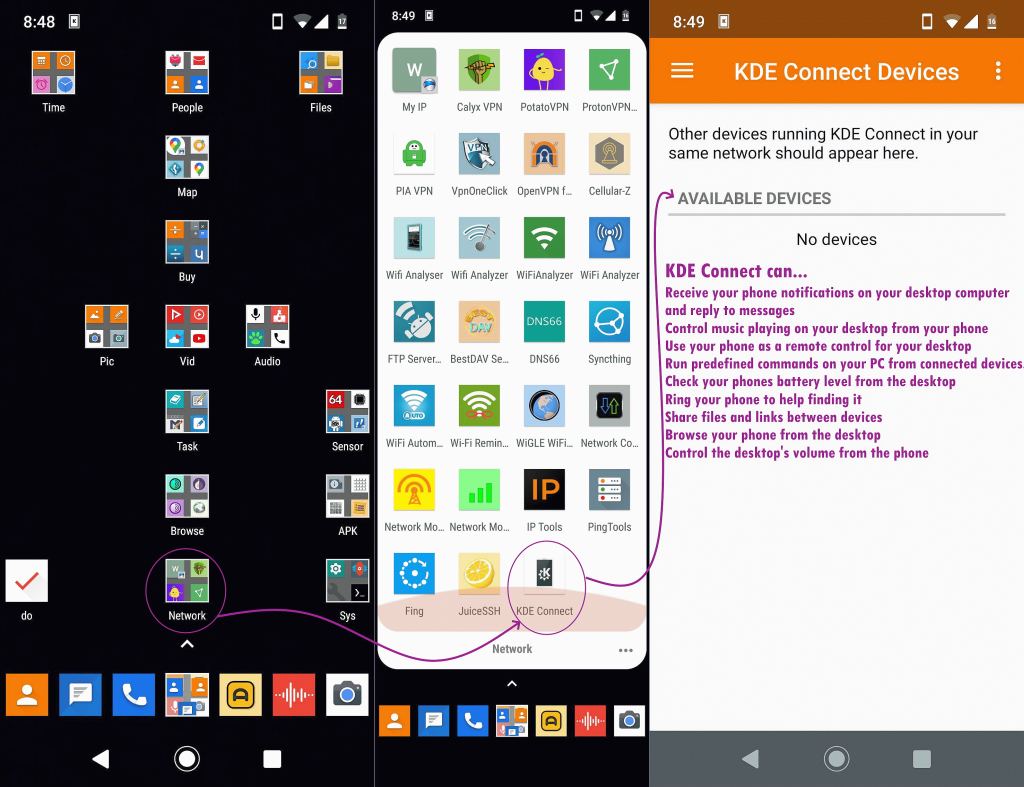
Another alternative is Quick Share.
As it was developed by Samsung, Quick Share is already on your Samsung phone in the sharing part of any app which can share items/files.
For the Windows side, see:
'Share files between Android & Windows with Quick Share' <https://support.google.com/android/answer/13801258>
I use Quick Share when transferring only a few files or folders
between phone and computer (otherwise I use the USB-cable method). And I
use it to transfer files/folders between phones.
On 11/12/2025 16:46, Jim Jackson wrote:
On 2025-12-11, Fokke Nauta <fnauta@solfon.nl> wrote:
On 10/12/2025 22:26, Marian wrote:
Fokke Nauta wrote:
It works OK now, so I don't need LocalSend.
Thanks. I agree. LocalSend is mostly for when we're dealing with iOS.
Ah. We don't have any Apple products.
Oh, I do - there's some apple vinegar, some cider, an apple pie in the
fridge, and cooking apples in a bucket by the door. But I don't see how
I can exchange files with them!
We don't even have those apple products in house! But perhaps changing
bio files from an organic system?
I use Quick Share when transferring only a few files or folders
between phone and computer (otherwise I use the USB-cable method). And I
use it to transfer files/folders between phones.
That's a good idea, Frank. I'll have a look at it.
| Sysop: | DaiTengu |
|---|---|
| Location: | Appleton, WI |
| Users: | 1,089 |
| Nodes: | 10 (0 / 10) |
| Uptime: | 155:34:45 |
| Calls: | 13,921 |
| Calls today: | 2 |
| Files: | 187,021 |
| D/L today: |
3,961 files (1,001M bytes) |
| Messages: | 2,457,202 |